Website Loading Speed Optimization

The image was generated by a neural network ideogram
Today, using this website as an example, we’ll discuss how to optimize the quality and loading speed for PageSpeed Insights.
What is PageSpeed Insights?
PageSpeed Insights is a free tool from Google designed to analyze web page performance. It provides an evaluation of page loading speed and offers recommendations for improvement to enhance performance and user experience. The service is available for both mobile and desktop devices, evaluating pages based on various criteria and providing detailed reports and recommendations.
PageSpeed Insights helps webmasters, developers, and SEO specialists understand how their pages perform in real conditions and what specific steps can be taken to improve them. Improving the metrics suggested by the tool not only positively impacts user experience but also helps to boost search engine rankings on Google.
Initial Website Optimization
When creating the template, I followed these principles:
- Markup with pure HTML and CSS.
- Adding interactivity only with pure JavaScript.
- Avoiding the use of frameworks like Bootstrap and jQuery.
- Hosting fonts locally on the server with the site template.
- Using web-optimized font formats like WOFF.
By avoiding frameworks and using pure HTML, CSS, and JS, it was possible to significantly reduce the size of files loaded during site initialization, positively impacting the loading speed.
Avoiding storing fonts on third-party services like Google Fonts positively affects the site’s loading speed. When configured correctly, font loading will not block the overall loading queue and increase the site’s loading time.
Using modern font formats significantly reduces traffic usage. For instance, the same font in TTF format is 103 KB, while in WOFF2 format, it’s only 15 KB — a difference of nearly seven times!
For SEO optimization, we install the AIO SEO plugin, do the initial setup, and send the site for review.
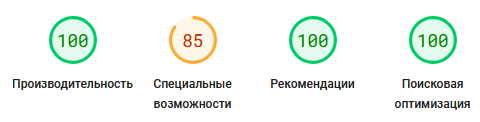
Results after initial optimization
As you can see, even these simple steps achieved almost perfect results without caching and data compression settings.
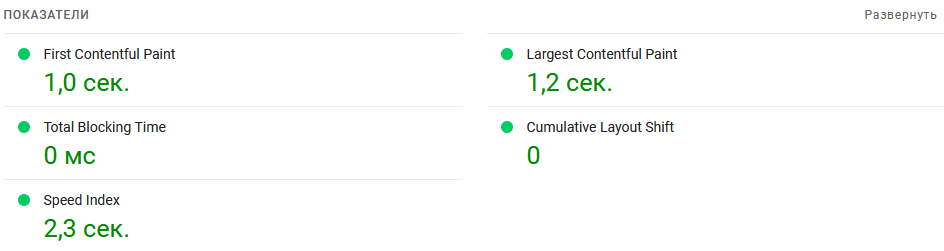
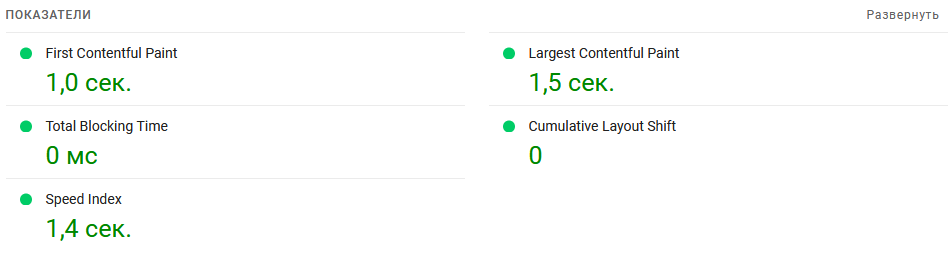
We will set up caching using the WP Fastest Cache plugin and see its impact. Caching slightly increased the site’s loading speed index, which is encouraging.
Fixing Errors
The check revealed three non-critical issues related to accessibility:
- The background and foreground colors of the links to site categories are not sufficiently contrasting.
- The LinkedIn profile link text is not distinguishable for screen readers.
- Header elements are not arranged in descending order.
Let’s start with the simplest fix: making the link text distinguishable for screen readers.
Why did this problem occur? If we look at the HTML markup of the link, it turns out there is no text between the opening and closing tags <a></a>, which is a problem. To avoid changing the markup and save time, I simply added the “title” attribute to this link. The problem is now solved.
The next issue to fix is the sequence of headers.
What’s wrong here? The page uses <h1> and <h2> headers, but in the footer, there’s an <h5>. The headers are not sequential, which the validation service doesn’t like. Fixing this is not difficult: replace the <h5> headers in the template with <h3> and do the same in the style files. Once the changes are made, we can forget about this issue.
The last issue I tackled concerns the contrast between the white text of the category name to which the post belongs and its red border. The contrast ratio is currently 3.86, while the minimum required is 7.1. Using a contrast calculator, I realized that the red color needs to be darkened slightly, and the text size increased.
And that’s the last issue fixed. Now, the site will look as good as possible in Google’s eyes.
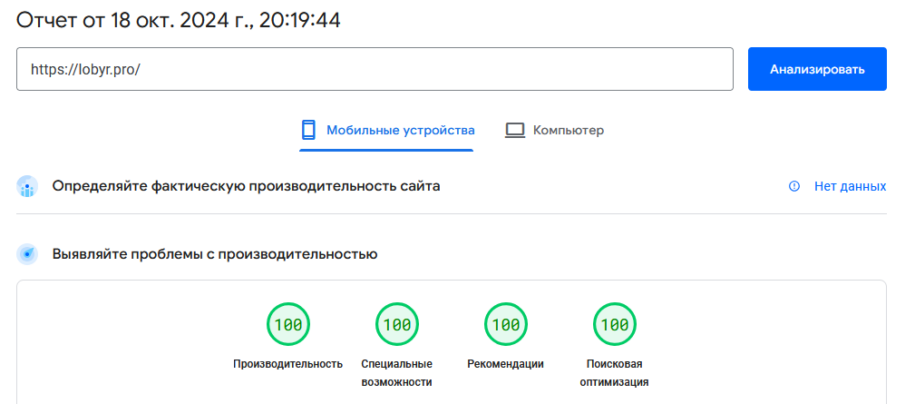
Website optimization results